Shadowrocket Setup Guide
quick-startImport an existing configuration → choose a routing mode → connect and verify. Follow these five steps to get started, then check issues based on where they occur.
Add a server and import a subscription
01 / importFirst identify the type of connection details you have. A subscription link is usually a URL used to retrieve a server list. A single server share describes one connection. Manual parameters include a protocol, address, port, and authentication details. These serve different purposes: do not enter a subscription URL in Host, or use a webpage URL for instructions as a subscription link. If you are unsure, ask your service provider to confirm the type of details you received.
Existing subscription link: select Subscribe
Open Home and tap the add button in the upper-right corner or Add Server in the SERVER group. Tap Type, select Subscribe, and enter your complete subscription link in the URL field. Add a recognizable remark for the subscription, then save it. Return to Home, wait for the list to load, and check whether server entries appear under the subscription.
Check both ends of the link before and after pasting, especially the beginning and end. Explanatory text, line breaks, or extra spaces in a message may be copied along with it; query parameters may also be truncated. Do not remove parameters just because they look complex; they may identify your subscription. Treat the subscription URL as an account credential. Do not post it in public comments, screenshots, or online conversion pages.
Saving a subscription does not mean it has updated successfully. If you see a group name but no servers, use the subscription's action menu to try updating it, then check whether the link is still valid and whether the current network can retrieve its contents. There is no need to change Global Routing yet: the import is incomplete, and changing modes will not fill an empty list. Avoid creating multiple copies of the same subscription, which can make it difficult to tell which one is in use.
Existing server parameters: fill in the fields for the selected Type
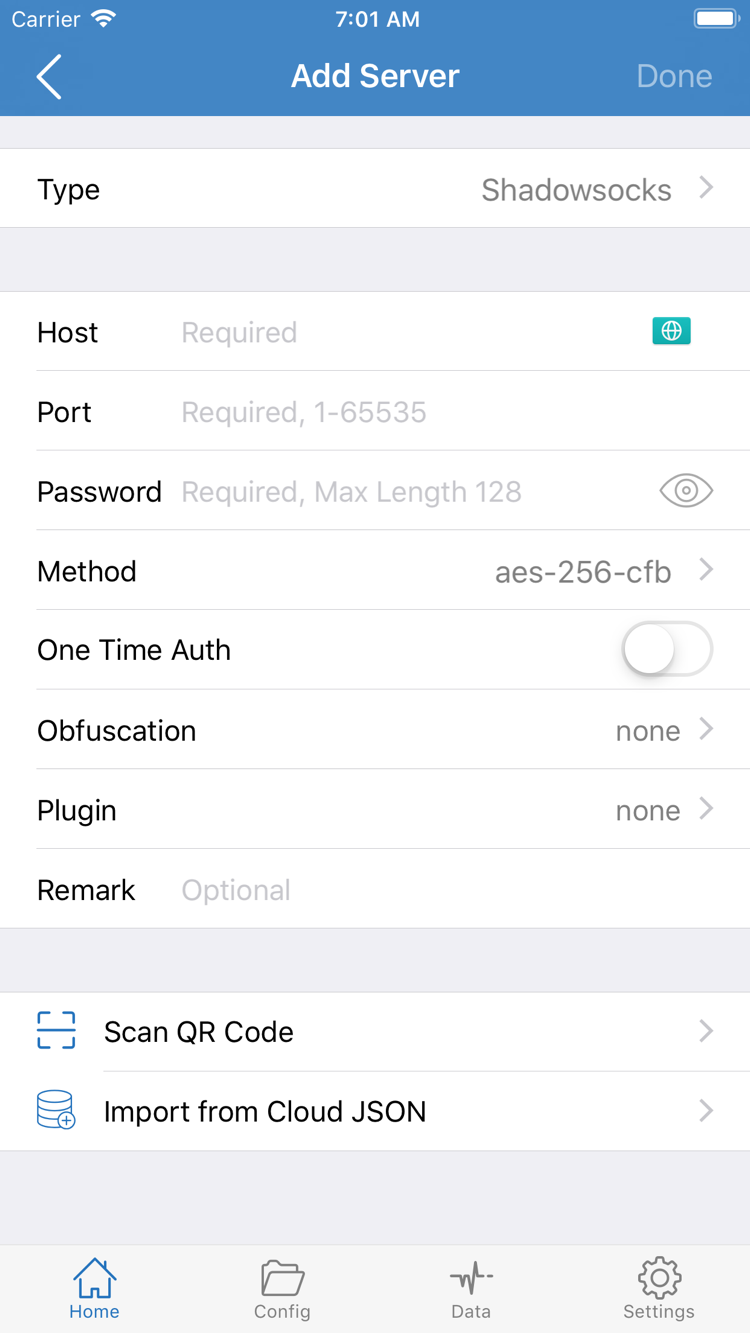
If you have individual parameters, first select the correct Type in Add Server, then enter the Host and Port. The screenshot shows a field combination that includes Password and Method; different protocols show different fields, so do not use the same set of values for every protocol. Host is usually the domain name or IP address provided by your service provider, not a complete webpage URL.
Authentication details, encryption method, transport, and TLS-related parameters must match the server. Similar protocol names do not mean their fields are interchangeable, and you should not guess missing values. Save the entry, return to Home, and confirm it appears in SERVER. If you have a QR code, use Scan QR Code. Import from Cloud JSON is only for data in the corresponding format; it is not a general-purpose subscription import method.
This step is complete when a selectable server appears in the list and you can identify its source and remark. Select an entry with complete details before continuing. For information about specific protocol fields, see Protocol Details; you do not need to change every advanced option during your first connection.
Global Routing: three modes
02 / routingOnce a server entry is ready, return to Home and tap Global Routing to check how connections are currently handled. This setting determines the type of policy used for connections; it does not download a subscription or fix an incorrect server password. Before your first use, understand the three modes and decide whether you need to edit a configuration file.
- Config: Uses the rules in the current configuration file to decide how connections are handled. Use it to route traffic differently by domain or address, provided that the active configuration file is set up as expected.
- Proxy: Applies a proxy policy to connections it can handle. This can help you make a short-term check of whether a server connection is available. It does not mean that all network activity from every app will necessarily use the same route.
- Direct: Connects directly without forwarding through a proxy server. Use it temporarily to compare access over the local network. When it is selected, do not use proxy access results to judge whether the server is working.
Config mode and the Config page serve different purposes
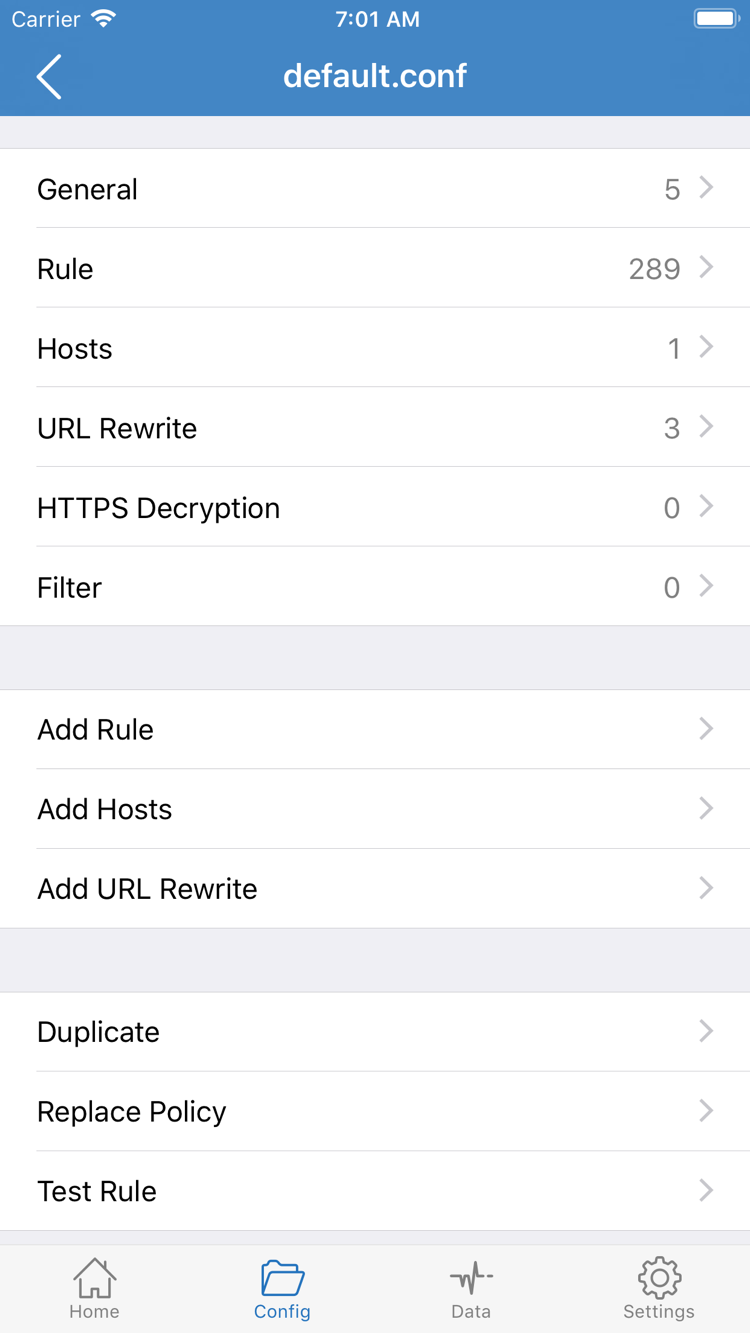
Config in Global Routing is a connection mode; the Config page at the bottom of the app is for managing and editing configuration content. The names are the same, but they refer to different things. To use rule-based routing, open Config, confirm which file is selected, and check its Rule section. General, Hosts, URL Rewrite, and HTTPS Decryption in the screenshot are other configuration sections and do not need to be enabled one by one for your first connection.
Rules are usually matched from top to bottom, and the first matching rule applies its policy. DOMAIN-SUFFIX matches domain suffixes, IP-CIDR matches address ranges, and FINAL is the fallback when no preceding rule matches. DIRECT means a direct connection; PROXY means a proxy policy. When checking rules, look not only for the target domain but also for broader rules above it that might match first.
This guide does not require you to create a full set of rules. If you already have a trusted configuration, check that it is selected and review its rules. If you only have server parameters and are unsure whether the configuration is correct, you can use Proxy for a brief connectivity comparison, then switch back to Config after testing. Do not change the server, rules, and DNS at the same time; otherwise, it will be difficult to tell which change affected the result. For concise definitions of rule keywords, see the Glossary.
Home: connect
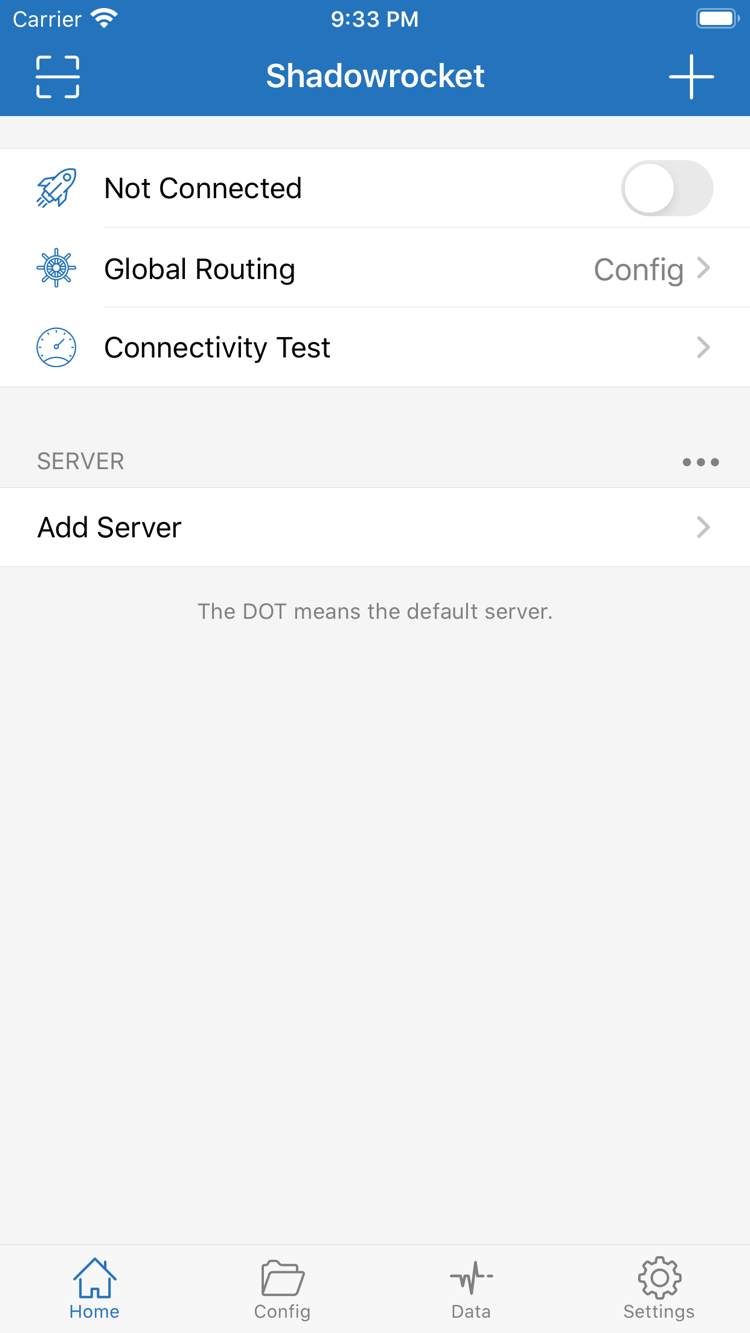
03 / connectAfter choosing a mode, return to Home and select the server you plan to use in the SERVER group. Confirm that the selection indicator is on the intended entry, then check the current Global Routing value. If a subscription has multiple entries, a successful import does not mean the app has selected the one you just added. This check helps prevent you from connecting with an old entry by mistake.
Turn on the switch next to Not Connected at the top of the page. The first time you connect, the system may prompt you to authorize adding a VPN configuration. Confirm that the request is from Shadowrocket, tap Allow, and complete any password or device identity verification requested by the system. This lets the system create a local network configuration; it is separate from entering server account details. Do not enter your system password in the server's Password field.
Return to the app and wait for the status at the top to change. If you previously denied authorization, the switch may not stay on. Try connecting again and follow the system prompts to check VPN configuration permission; importing the subscription again will not resolve an authorization issue. If your device is managed by an organization and VPN configurations are restricted, check the device management rules instead of repeatedly changing server fields.
An enabled switch and a VPN status shown by the system only indicate that local network handling has started. They do not prove that the remote server is reachable or that every rule matches as expected. Even with an incorrect password or an unreachable destination service, the local status may not reflect the actual access result. Keep the current server and mode unchanged and proceed to the next step to establish a repeatable result.
To stop the connection, return to Home, turn off the switch at the top, and confirm that the status returns to Not Connected. You do not need to enable On Demand during initial troubleshooting. If it is already enabled, check whether network conditions trigger a new connection later. Keeping the connection switch, selected server, and mode clear makes issues easier to locate than repeatedly switching between entries.
Connection tests and verification
04 / checkStart by running Connectivity Test from Home and see whether the current entry returns a result. What the test checks depends on Test Method in Settings: different methods check different targets and network layers. A response does not guarantee that a webpage will load completely, and no response does not immediately prove that every server function is unavailable. Record the result, then compare it with actual access.
Verify connectivity and rule behavior separately
Open a browser and visit a specific page you already need to use. Check whether it loads completely. Then visit a page expected to connect directly and confirm that ordinary network access still works. Use a fresh page request where possible; do not rely only on a cached page. If only one app has a problem, first check the browser result instead of assuming the entire connection is unavailable.
Next, return to Shadowrocket and open Data to check the connection information for the current request. In the available request details, verify the destination, rule, and handling policy. In Config mode, requests expected to connect directly should correspond to DIRECT, while requests expected to use a proxy should follow the relevant proxy policy. A page loading only shows that one route works; it does not confirm that the correct rule matched.
For comparison, briefly switch between Config and Proxy while keeping the same server. If Proxy works but Config does not, first check the active configuration and rule order. If both fail, continue by checking server parameters, the local network, and remote status. When testing is complete, restore the mode you intend to use every day; do not treat a temporary troubleshooting choice as your final configuration.
Initial setup is complete when the server works, the intended destination is accessible, and rule handling matches expectations. Keep the working configuration, then explore On Demand or more detailed routing rules as needed. Avoid changing many advanced options at once in search of a “best setting.” Before making further changes, keep a restorable copy of the configuration and protect any connection credentials it contains.
Troubleshoot by failure point
05 / diagnoseFirst identify whether the issue is with importing, connecting, access, or rules, then check the relevant conditions. A failed save, an empty SERVER list, a switch that will not turn on, and a page that will not load are different problems. Keep the current error message. Do not start by deleting all configurations or resetting every setting; doing so removes useful comparison data and may also erase entries that still work.
Import fails or the list is empty
Return to the subscription settings and check the complete URL. Confirm that you have not used a regular webpage URL and that no parameters were lost when copying. Check that the current network can access the subscription URL, and ask your service provider to confirm the subscription status. If the response is a sign-in page, an error message, or unsupported content, updating it repeatedly will not turn it into a valid configuration. Keep the subscription remark and record the error. Do not publicly share a link containing credentials.
Test fails or access fails after connecting
For a manually added entry, first check Type, Host, Port, and authentication fields, then verify that TLS, transport, and other additional parameters are complete. If ordinary webpages do not load over the local network, resolve the Wi-Fi or cellular connection issue first. Then compare results on a different network while keeping the same entry and mode. If a connection test succeeds but a webpage does not load, also check domain resolution and the status of the destination service; do not rely on a single test result.
Some pages fail or results differ between modes
First confirm that Global Routing is not set to Direct, then check which configuration file is active in Config. If a destination fails in Config but works in Proxy, check which Rule matched the relevant request. Specific domain rules should appear before broader rules that could match first; FINAL is usually the fallback at the end. Find the rule that actually matched before deciding what to change. Do not delete an entire set of rules without checking.
In Settings, check only items related to the issue
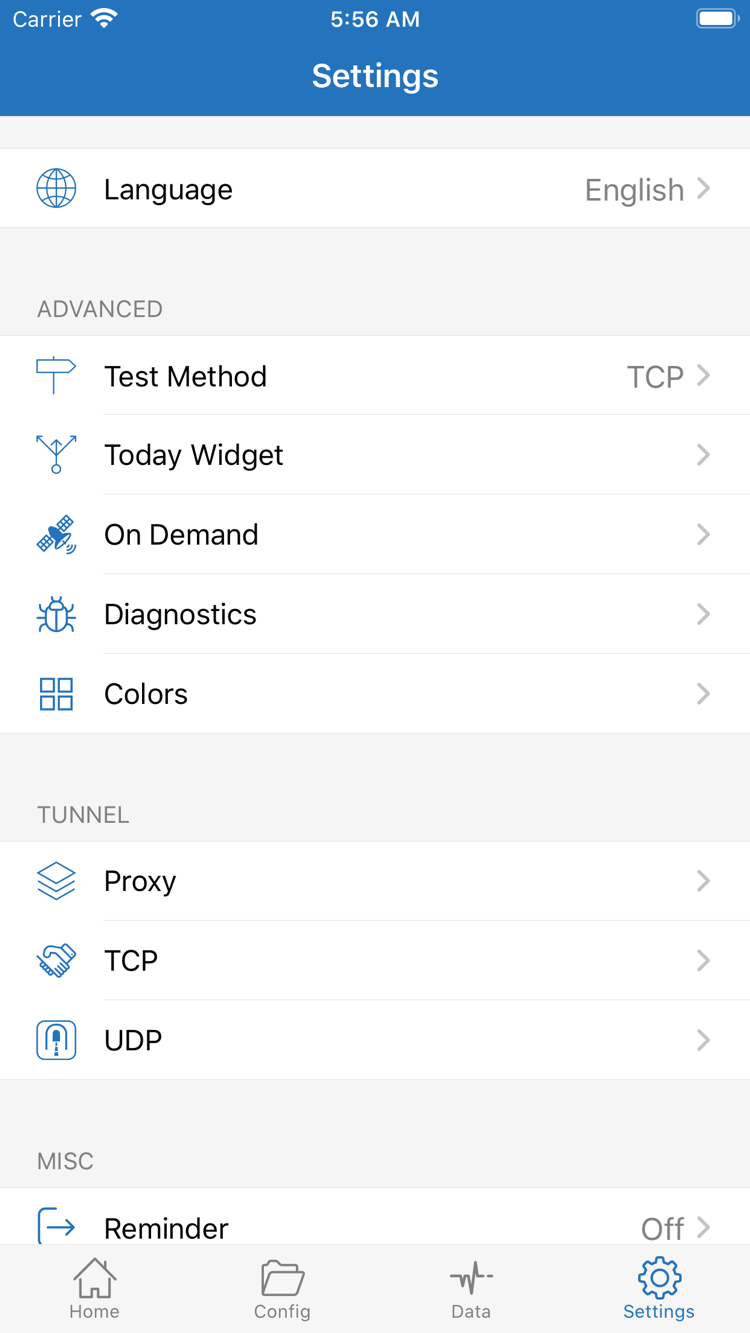
In Settings, check Test Method to understand how Connectivity Test works. Check whether On Demand has triggered a connection under the current network conditions. Use Diagnostics only if you need more information. Proxy, TCP, and UDP in the screenshot are separate settings groups, not switches that must all be changed when an issue occurs. Record the original values before troubleshooting, test immediately after a change, and restore the original values if the result is unexpected.
If the problem continues, note when it occurred, the network type, selected protocol, current mode, and exact error, then ask your service provider to check the server-side status. Before sharing screenshots or diagnostic text, hide the subscription URL, password, authentication identifiers, and other personal information. For more issues, browse Common Questions by category. For protocol parameters and selection differences, see Protocol Details; you do not need to work through the full set of technical settings when getting started.
Other devices and download options
getThe interface steps above use iPhone / iPad as an example. Shadowrocket is also available for Mac (Apple silicon and Intel), Windows, Android, and Linux. The iPhone / iPad version costs $2.99 as a one-time App Store purchase; the Mac / Windows / Android / Linux versions are free. Installers are available from this site's download page under /dl/shadowrocket/.
Current version Loading · $2.99 one-time for iPhone / iPad; free on other platforms
To verify the iPhone / iPad app, see App Verification on the download page. The developer is Shadow Launch Technology Limited, the app ID is 932747118, and the icon should match the one shown in the official store.